
Creating multiple entities allows you to run a single instance of 1CV but have different customer facing brands. You can create separate clients, equipment, personnel and billing settings for each entity as well as customising logos that appear on invoices.
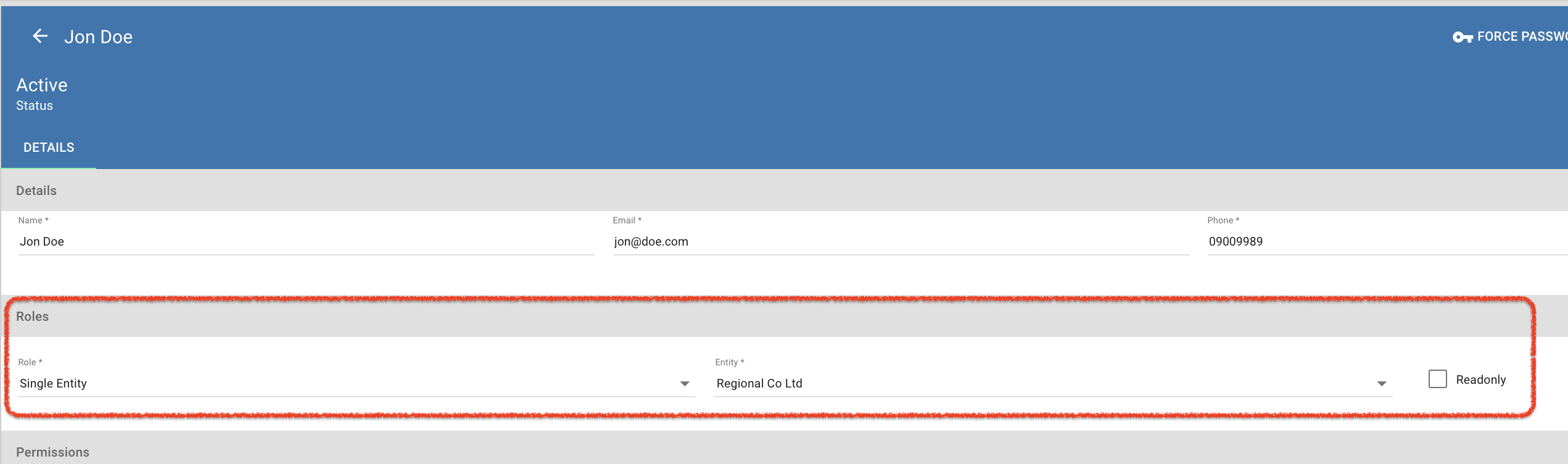
Additionally, you can restrict access to users to only be able to view specific entities allowing you to easily ring fence areas of your business and maintain strict client confidentiality.
** Adding extra entities to your 1CV instance will attract additional license fees. Speak to support@1clearview.com to discuss your requirements.
Setting up a new entity
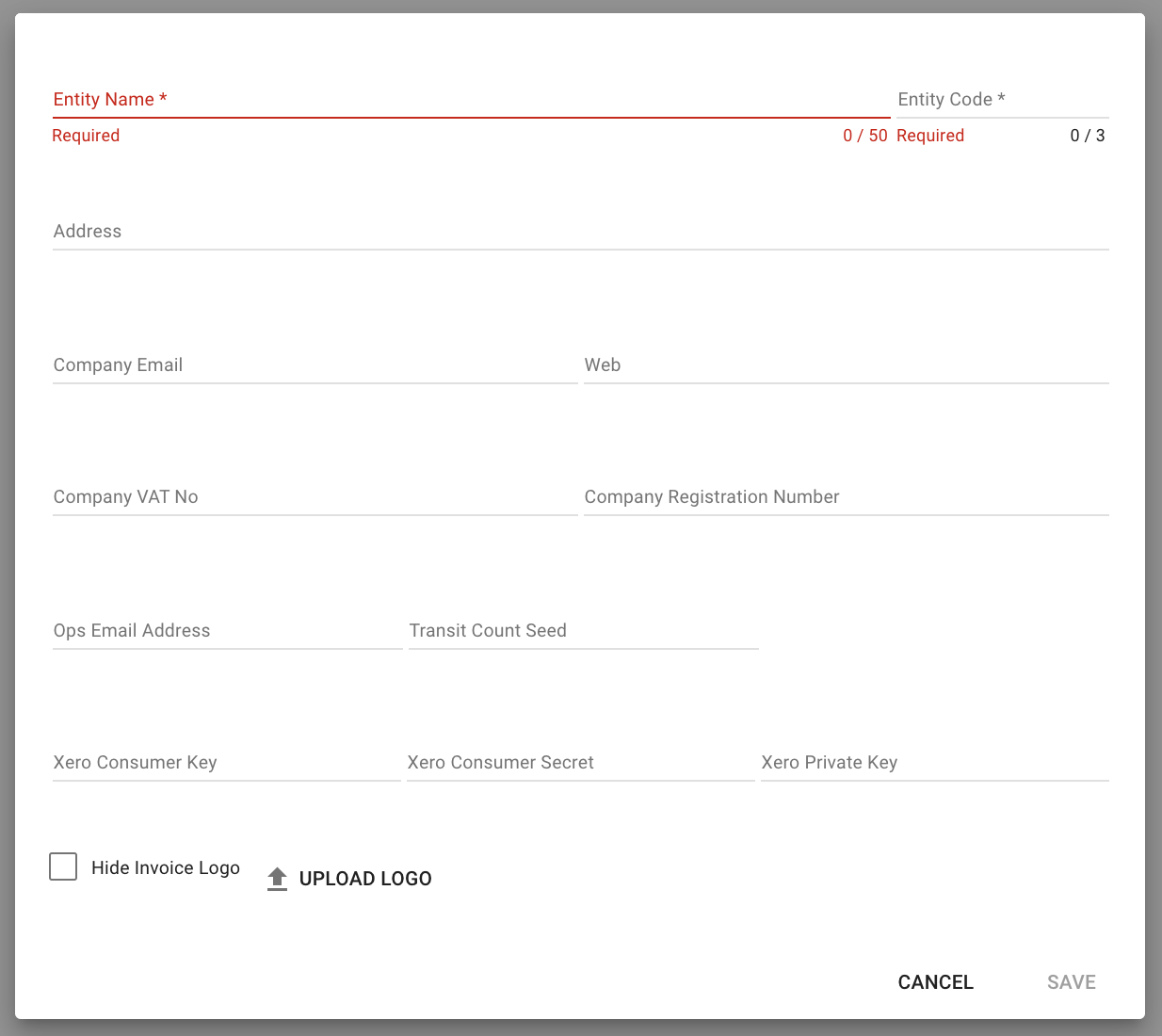
From system setting, click entities, press the add new entity button and fill in the details as per the screenshot below.
Using the Entity
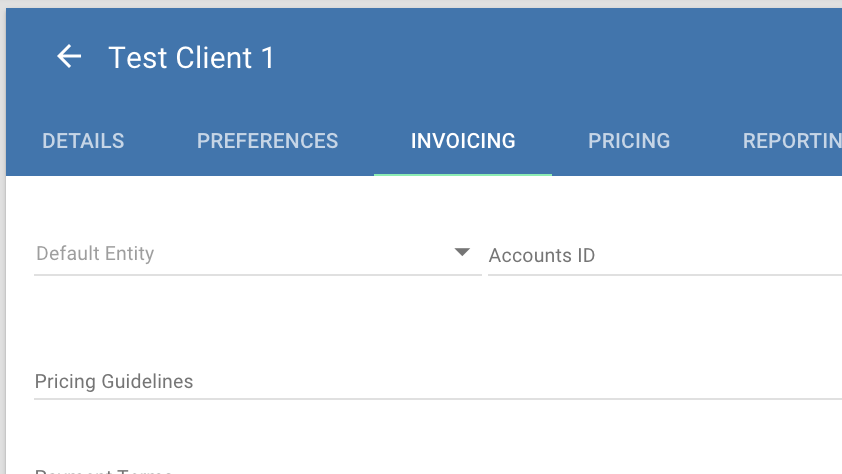
Clients can be configured to default to billing by a specific entity...
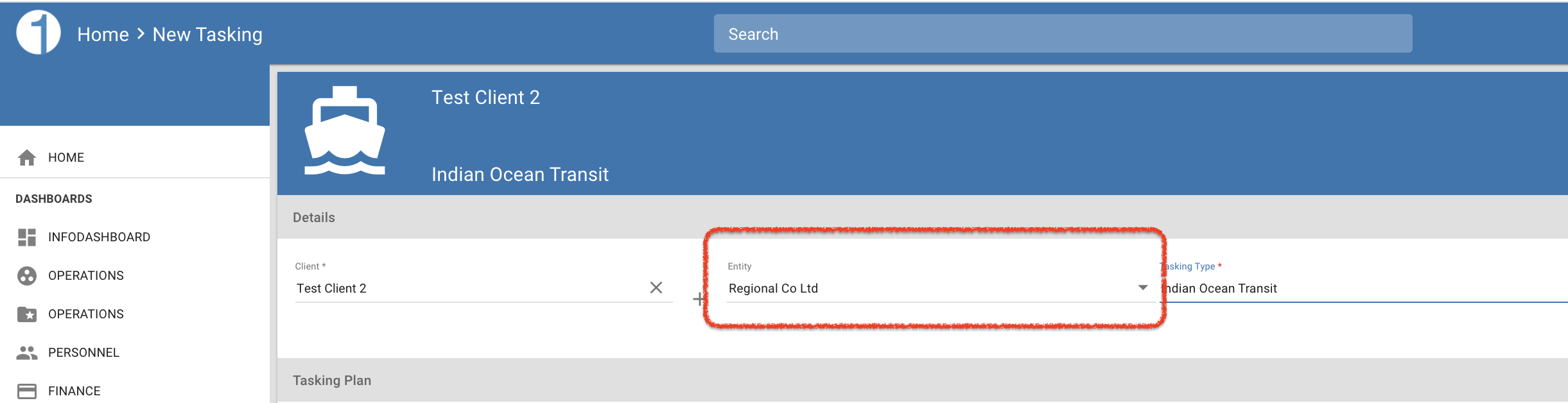
When creating a new tasking, the default entity is then set based upon the selected client. This can be overridden should you wish to bill the client from a different entity.
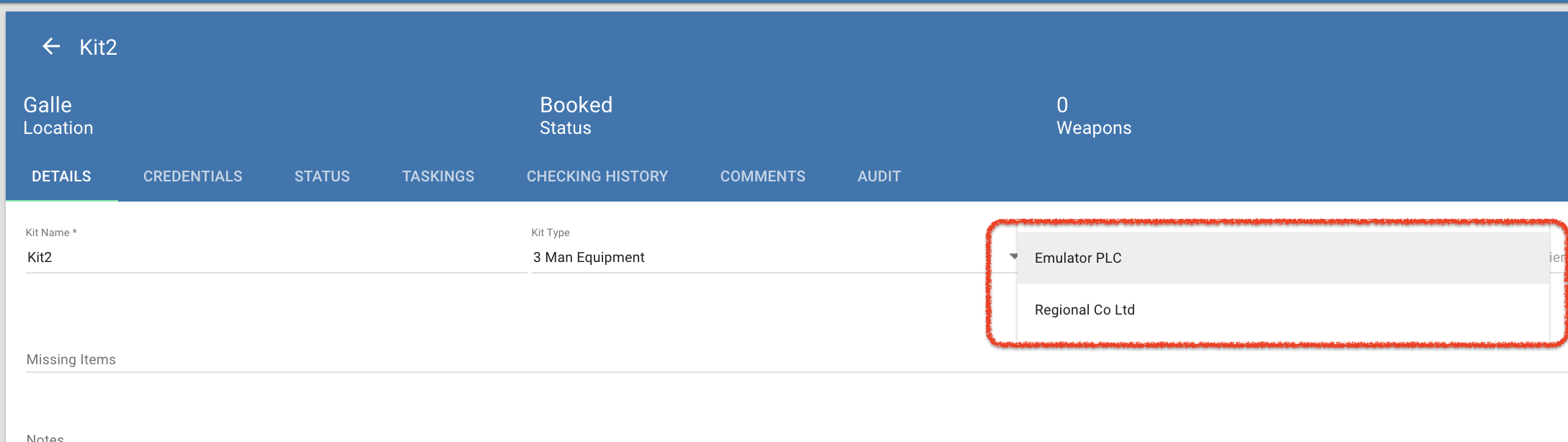
Kit can be assigned to a specific entity to ensure any equipment assigned to a transit complies with any local entity regulations. (Kit can be assigned from any entity by overriding the setting in the add kit popup)
And users can be setup to be limited to viewing clients, kit & transits specific to a local entitity.