

This system introduces a new tasking status “Opportunity” that sits in priority before quotes or new taskings. To ensure fast recording of new opportunities the only information required to start tracking is the client name. All other details are gathered from system wide defaults. The system is based upon “Kanban Boards” allowing you to organise opportunities into lists based upon your own preferences. Opportunities can then be freely moved between lists by simply dragging the card between lists.
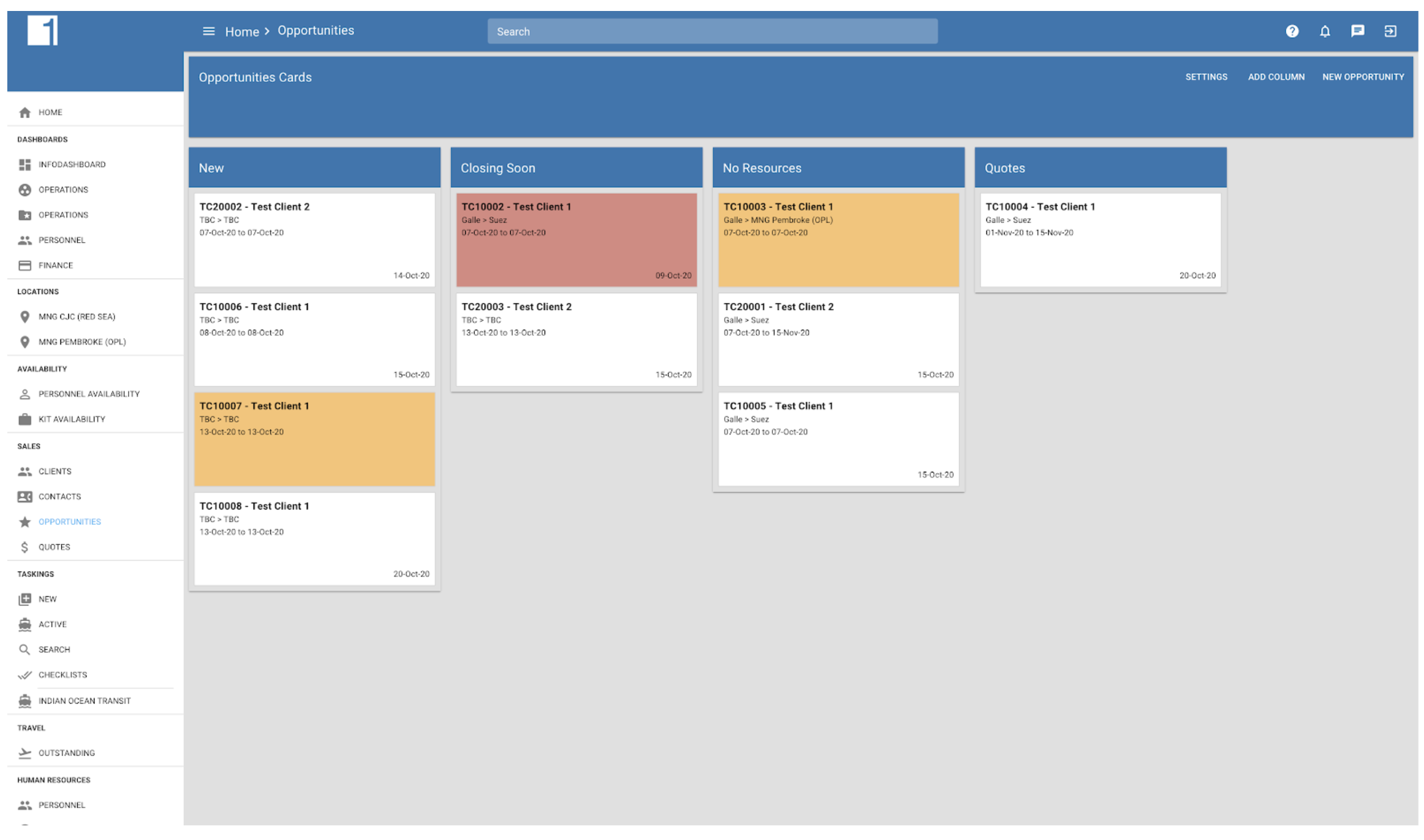
Colour coding of cards is used to alert you to opportunities that have not been followed up after a specified period of time. And to update the information simply click on the card to open a dialog where comments or changes can be made quickly and efficiently from one single screen.
To enable opportunities in your 1CV system please contact support@1clearview.com
Instructions
Initial Configuration
The initial view when entering the opportunity screen for the first time will be…
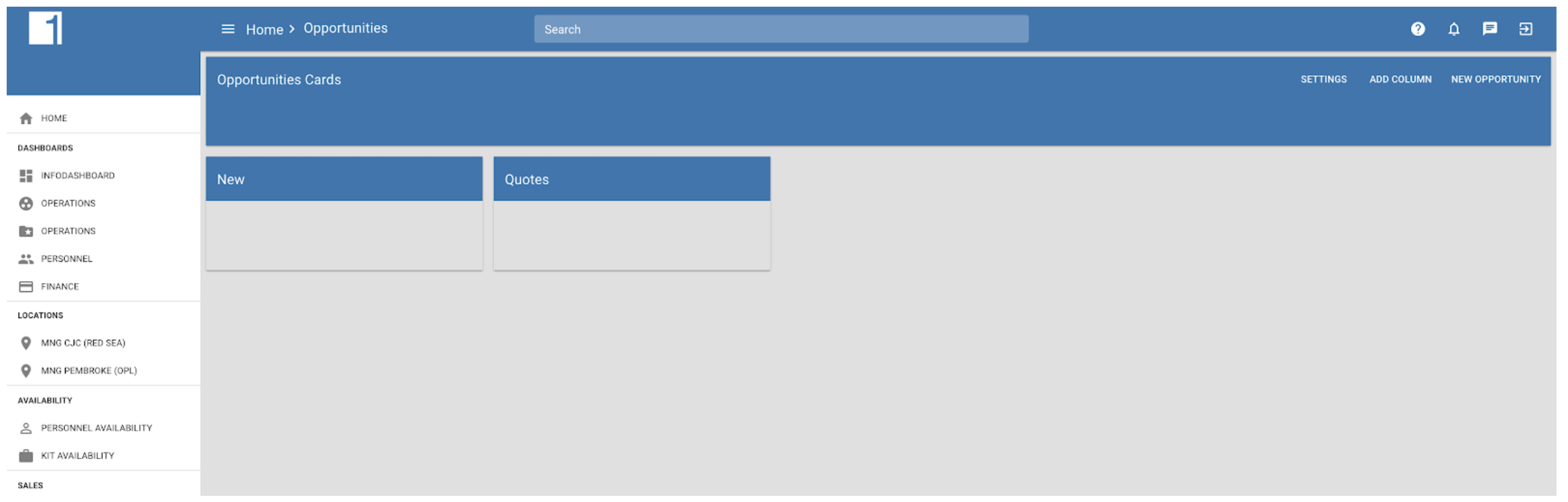
The first stage to configure the system is to decide what defaults should be applied to new opportunities. Administrators can set defaults by clicking the settings button in the top right corner.
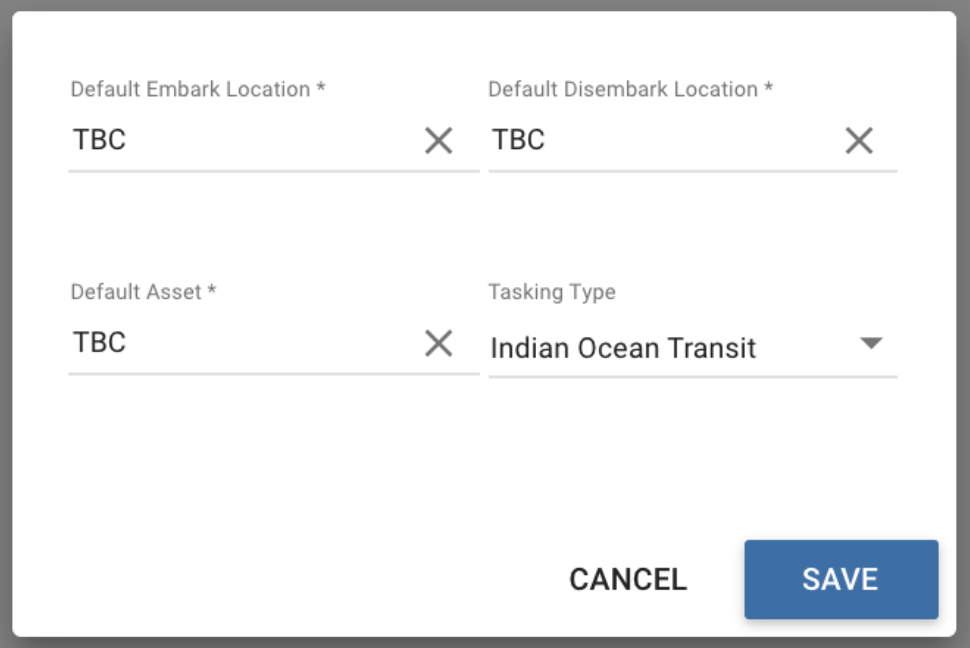
From this screen you can set the defaults used to initialize the new opportunity.
Creating New Opportunities
To create a new opportunity, simply click the NEW OPPORTUNITY button in the top right corner. This will display a popup window where you can add any detail. As you can see, all required fields apart from client name have been defaulted from the system configuration.
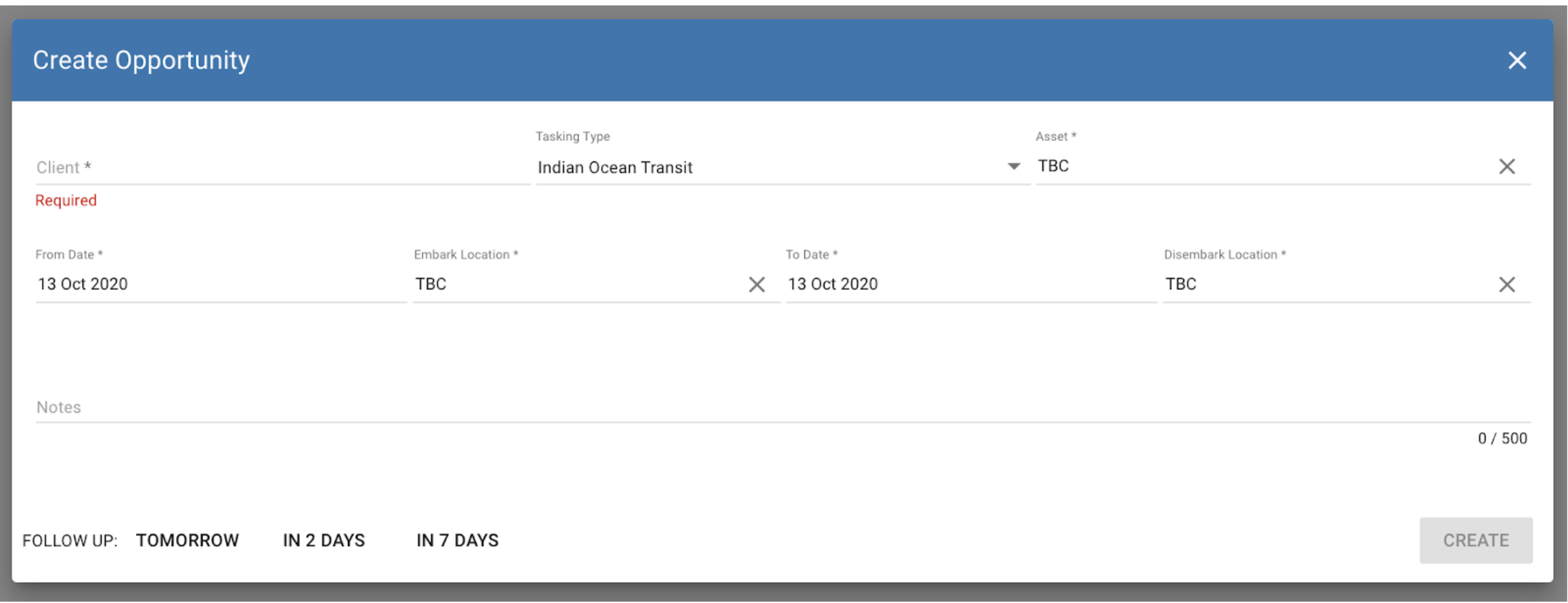
Once created, the opportunity will be added to the NEW list in the main screen…
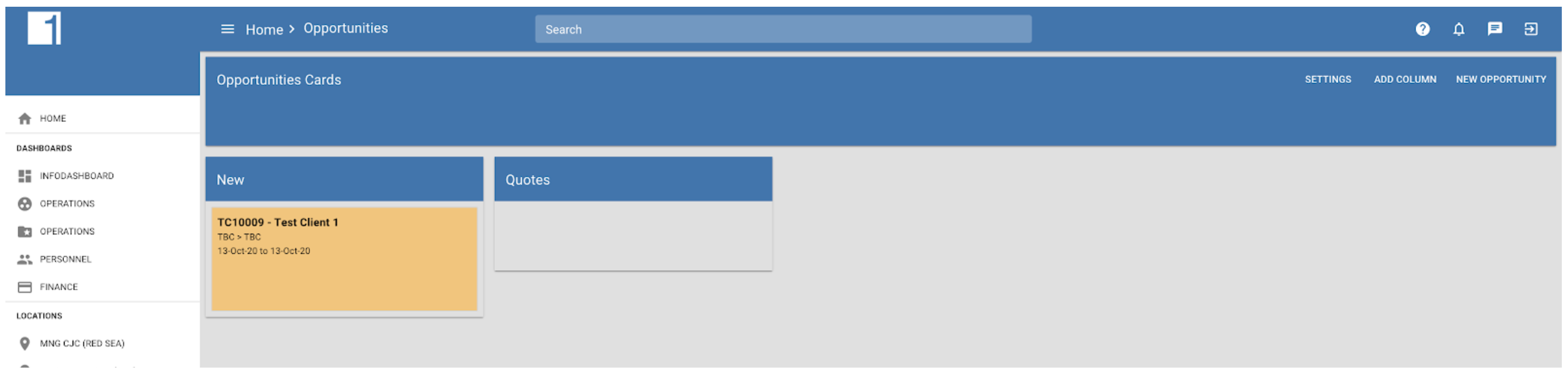
Clicking on the card will allow you to update the details as you learn more about the potential deal.
Adding Comments
You can also add comments to the opportunity to track progress and conversations with the client. To add a comment click the card and enter the comment text in the popup dialog box.
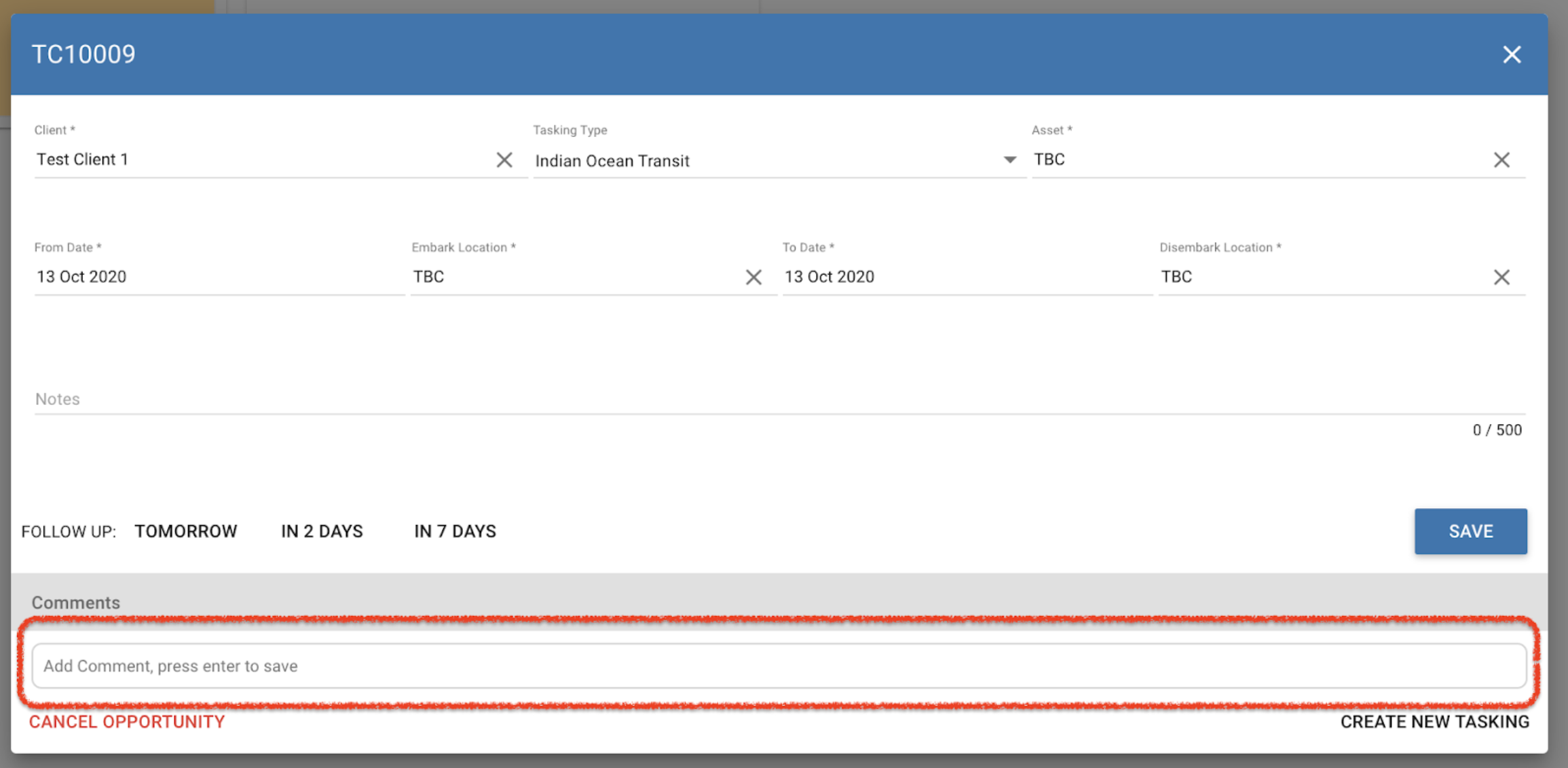
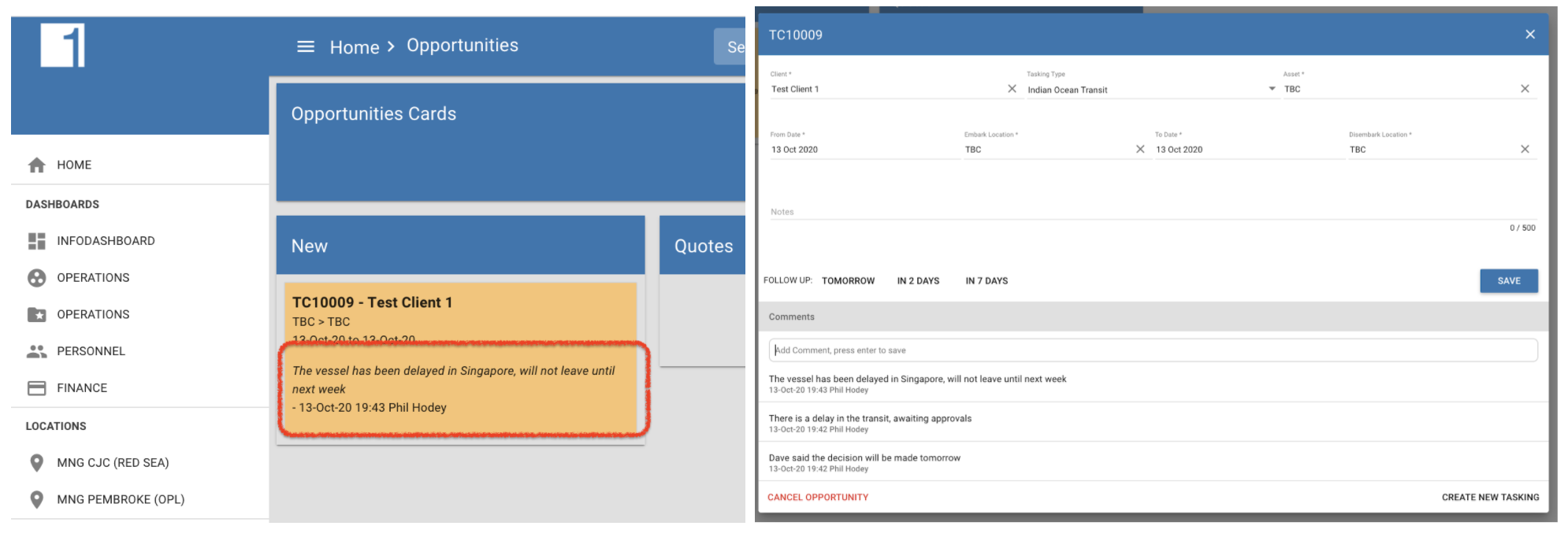
Add the comment and press enter, this will save the comment to the system. The most recent comment is visible on the main card and the entire timeline of comments is available on the popup dialog.
Reminders
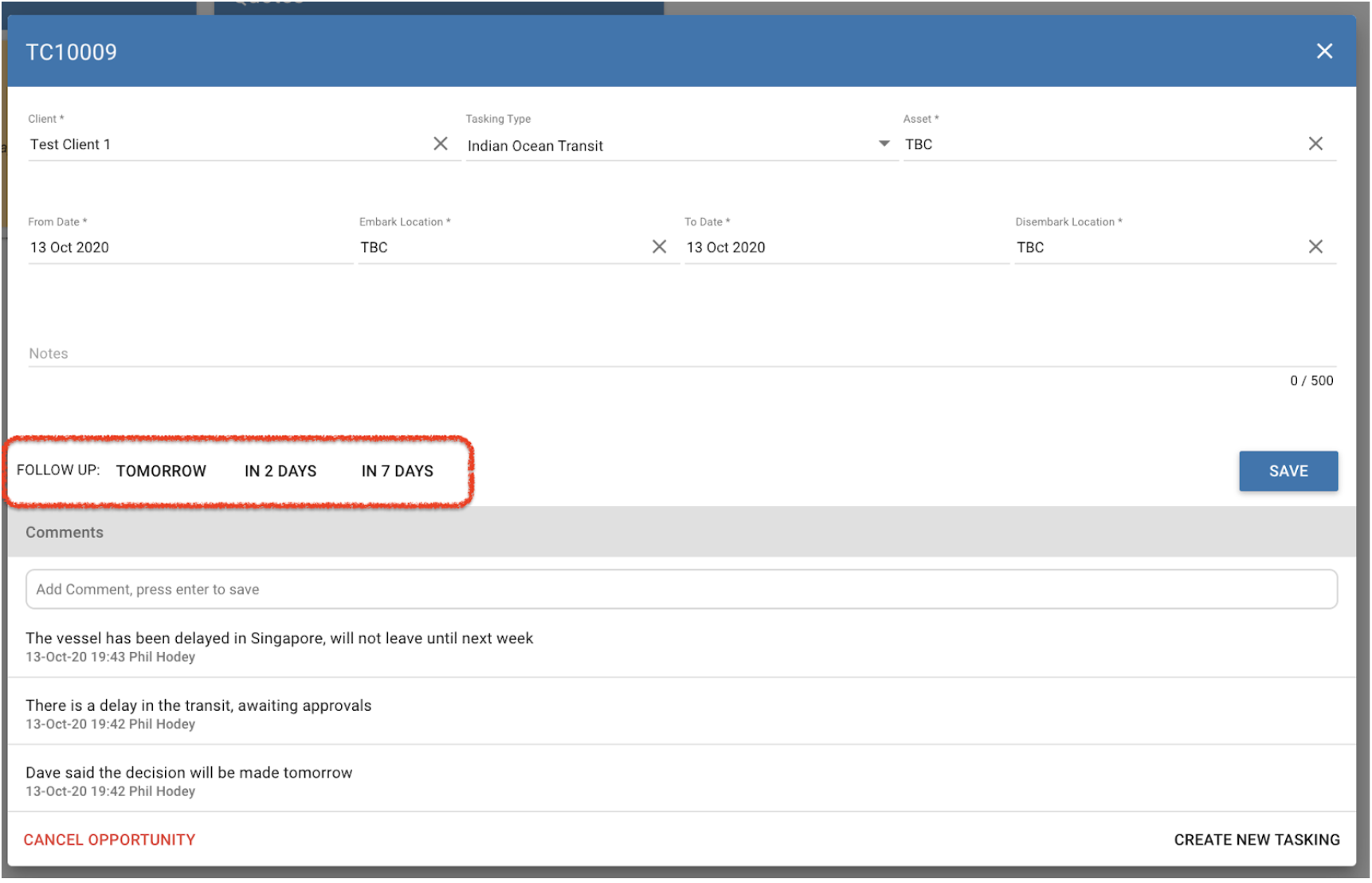
Each opportunity can be flagged to be followed up in either 1, 2 or 7 days. Once the follow up date has been reached the card colour will change to orange, If the follow up is in the past the card will turn red.
To set the reminder click the card and set the reminder date by clicking on the relevant button.
Organising Opportunities
Opportunities can be organised into lists to make it easier to track based upon your own personal workflow. To add a list, an administrator can click on the ADD COLUMN button and enter the title of the column. This will then add the list to the main screen.
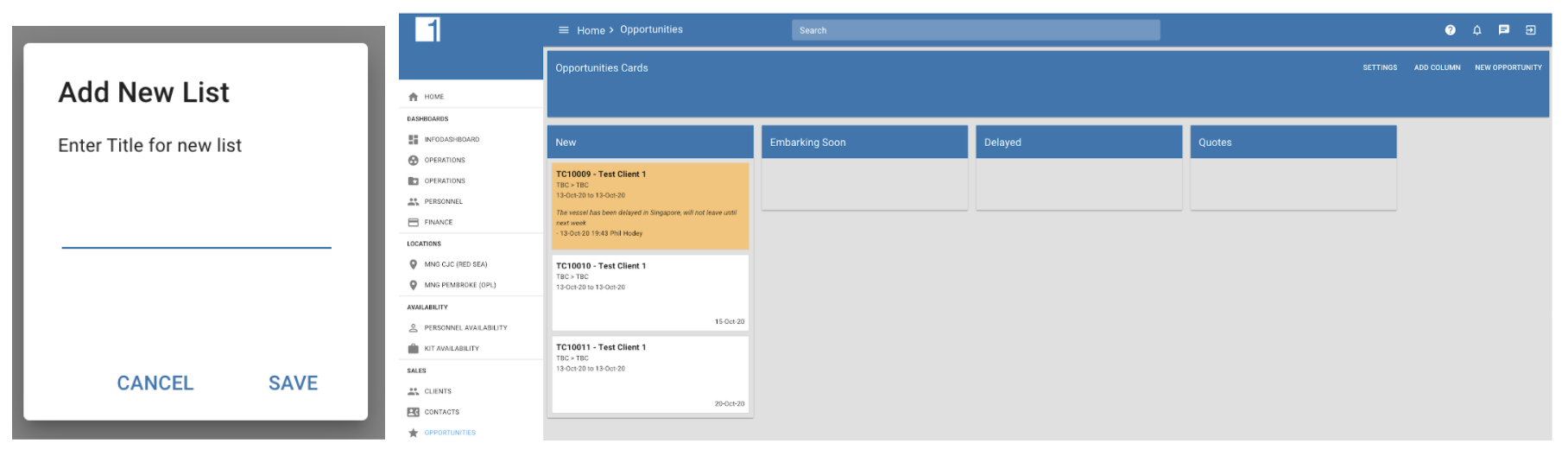
Once created you can simply drag and drop cards between lists as per your own personal preferences.
Creating A Task or Cancelling the Opportunity
To move the opportunity into a full tasking for quoting, open the card and click “Create New Tasking”, this will transfer the details to the new tasking screen where you can complete any additional details and create the quote. Alternatively, if the opportunity is cancelled, clic, cancel opportunity and enter details as to why the opportunity was cancelled.
Analysing Opportunities
For subscribers to the Kibana module, all opportunity data is available in Kibana for detailed analysis.
If you are interested in evaluating the Opportunities System please contact support@1clearview.com